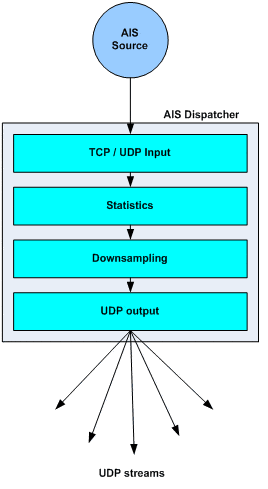
AIS Dispatcher is an AIS data forwarding utility which provides the following features:
- receives AIS data via UDP stream, TCP connection or serial interface
- performs CRC check and removes duplicated NMEA messages
- calculates overall statistics and detailed message statistics
- performs downsampling of the NMEA stream
- dispatches the NMEA stream via UDP up to 12 destinations (unlimited for Linux version)
Before forwarding, AIS Dispatcher downsamples the feed: for each vessel (MMSI) it sends only one position report per time window. This cuts outgoing traffic several times.

The time window is 0–60 seconds; 0 turns downsampling off. Only position reports (AIS messages 1, 2, 3, 18, 19) are downsampled.
Example of use
The following example illustrates how AIS Dispatcher can forward NMEA messages from a single AIS receiver to AISHub, another destination and chart software such as OpenCPN running on the same machine.
Raw AIS data sample
We receive a lot of questions from software developers who need some raw AIS data to test their applications.
Here you can download a sample with raw AIS data from AISHub. The file contains ~85K messages (3 minute live AISHub feed).
AIS Sample Download
AIS Dispatcher - Windows
- improved serial port data reception
- improved signal decoding via sound card
Installation
Download AIS Dispatcher ZIP file and unzip it in a separate folder.
Startup
After the first start, the program runs with default configuration. You can place a shortcut to aisDispatcher.exe on your desktop or into the "Startup" folder for an automatic startup.
Configuration
The configuration dialog is displayed by pressing “Configuration” button on the main window. The “Configuration” dialog contains four configuration panels – "Input", "Output", "Google Earth" and "Miscellaneous".
Input configuration

Input mode
You can choose one of the following types of data input:
| TCP | AIS Dispatcher creates a TCP connection to the remote data source |
| UDP | AIS Dispatcher listens on the specified port |
| Serial | AIS Dispatcher receives data from a local serial port (or USB serial device) |
- Remote IP – IP address (or domain name) of the remote data source (example: IP 192.168.1.102)
- Remote port – TCP port of the remote data source (example: port 4001)
- Local port – port on the local Windows machine, where AIS Dispatcher listens for incoming UDP packets (example: udp port 5000)
- COM port – serial port name (example: COM1)
- Baud rate – baud rate selection (example: 38400).
Serial input uses 8,N,1 serial settings, according to NMEA specification.
Output configuration

UDP Output
| Downsampling interval | time window of downsampling algorithm. For more details see: AIS Dispatcher – Description |
| Destinations | up to 12 destination IP addresses/ports. AIS Dispatcher forwards AIS data to all configured and enabled destinations. In our example, there are two destinations. |
| Filters | filtering by polygon and message types may be used for each destination |

Google Earth configuration

Delete old vessels
Expiration time – AIS Dispatcher keeps a list of all vessels received since startup. Each minute, the application purges the list and removes the vessels with last packet timestamp older than the defined “expiration time”.
HTTP Server configuration
Host / Port – AIS Dispatcher listens for network connections from Google Earth clients on the
specified host / port. When host is “0.0.0.0″ (by default), the application listens on all network interfaces.
Enable HTTP server – enable/disable the HTTP server
Allow localhost only - disables connection to all external interfaces. AIS Dispatcher listens for
connections only from Google Earth clients started on the user’s PC.
KML / KMZ export
Enable – enable/disable the regular export of KML/KMZ file into the local hard drive. AIS Dispatcher
saves the file in its installation directory, “kml_export” folder. The file is named “aisDispatcherSnapshot.kml” or
“aisDispatcherSnapshot.kmz”.
Export interval – time interval between sequential KML/KMZ exports
Miscellaneous
Use ZIP compression - when ZIP compression is enabled, AIS Dispatcher generates KMZ instead of KML.
This uses more CPU time but cuts network traffic several times. Google Earth also needs more CPU time to read KMZ.
Show vessel names - shows the names of all vessels.
Miscellaneous configuration

| Auto connect on startup | automatically creates connection after the start of the application |
| Minimize to system tray on close | when pressing ALt+F4 or “X” button, the application is minimized to the system tray. It can be closed by clicking on the system tray with the right mouse button and selecting “Exit”. |
| Start application minimized | after startup, the application is minimized to the system tray |
| Show system tray hint | displays hint with the current status when mouse cursor hovers over the icon in the system tray |
| Dispatch VDM/VDO messages only | filters only VDM/VDO messages from AIS sources. If the filter is off, AIS Dispatcher will forward all other NMEA messages (like GPS devices for example). |
| Don’t dispatch channel C | filters AIS channel C (secure AIS) |
Main window
AIS Dispatcher’s main window contains connection controls and detailed statistics of the input data feed.

Input section
| Mode | current input mode (TCP,UDP or serial) and connection parameters |
| Status | current connection status |
| “Start”/”Stop” buttons | connection control |
Input statistics
Message counters and byte counters of the incoming data feed. For more information about the meaning of the fields, check the AIS specification.
Input statistics (by AIS message type 1..24)
There are 24 different types of AIS messages. This panel displays separate message counter for each message type. Additional details about each message type are displayed by hovering with the mouse over the counter.
Last messages
Displays the last received AIS messages
"Clear" button
Clears all counters
"Configuration" button
Displays configuration window described in the previous chapter
Output statistics
In/Out ratio - ratio between input and output data counters. This parameter shows the efficiency of
the downsampling algorithm.
Bandwidth (kB/s) – average output bandwidth in Kilobytes per Second
Distinct vessels – current number of vessels kept in AIS Dispatcher memory buffer.
AIS Dispatcher - Raspberry Pi / Linux
Runs on Raspberry Pi and on most other Linux systems (x86_64 / ARM).Installation
wget https://www.aishub.net/downloads/dispatcher/install_dispatcher
chmod 755 install_dispatcher
sudo ./install_dispatcher
Opening AIS Dispatcher configuration
Start your browser and open URL:
http://IPADDRESS:8080 (change IPADDRESS with your IP address)
Default web login credentials are:
- Username: admin
- Password: admin
Configuring AIS Dispatcher
After login the web page displays the current status of your AIS station:
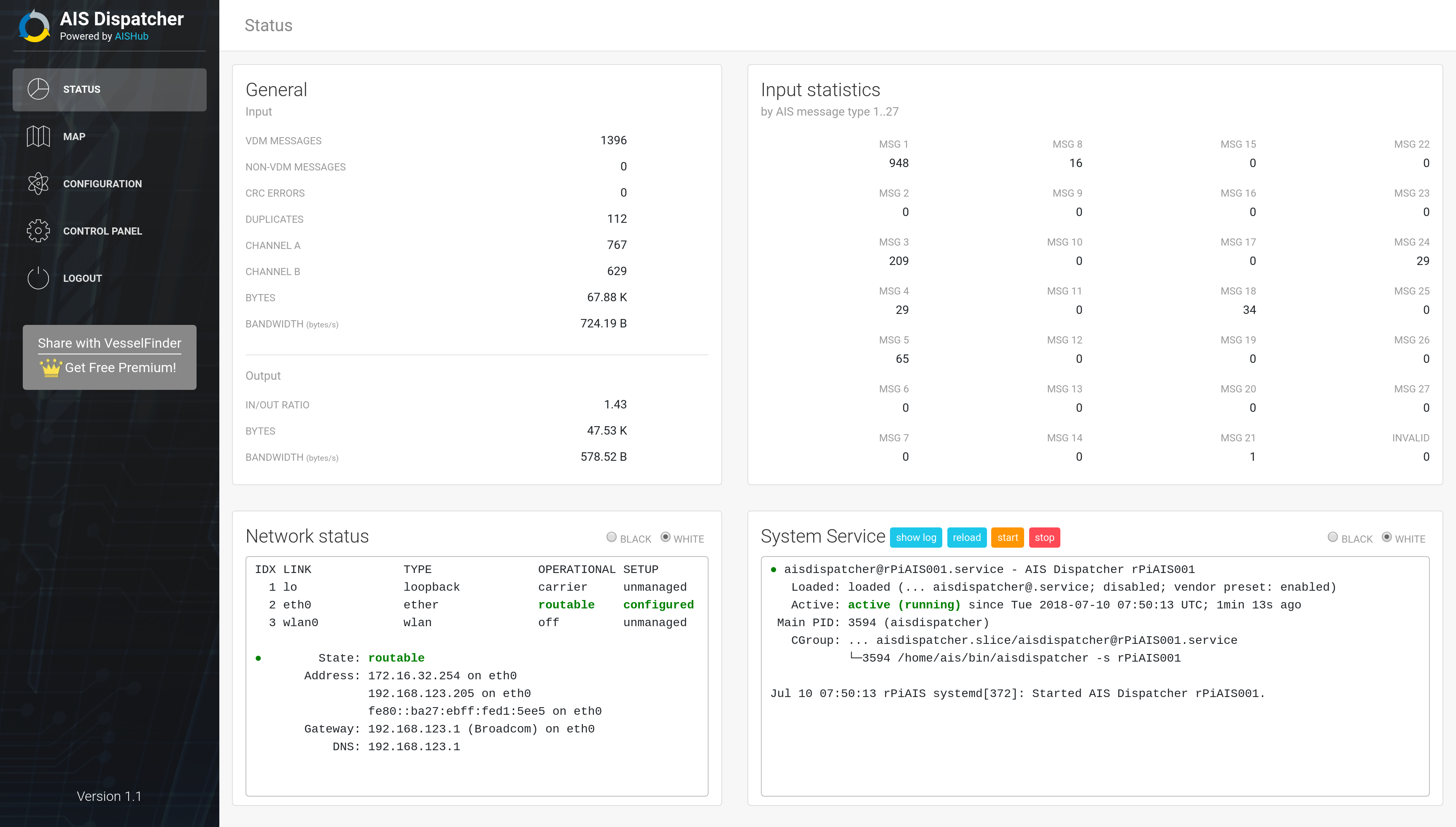
To configure your AIS Dispatcher select “Configuration” from the left panel.
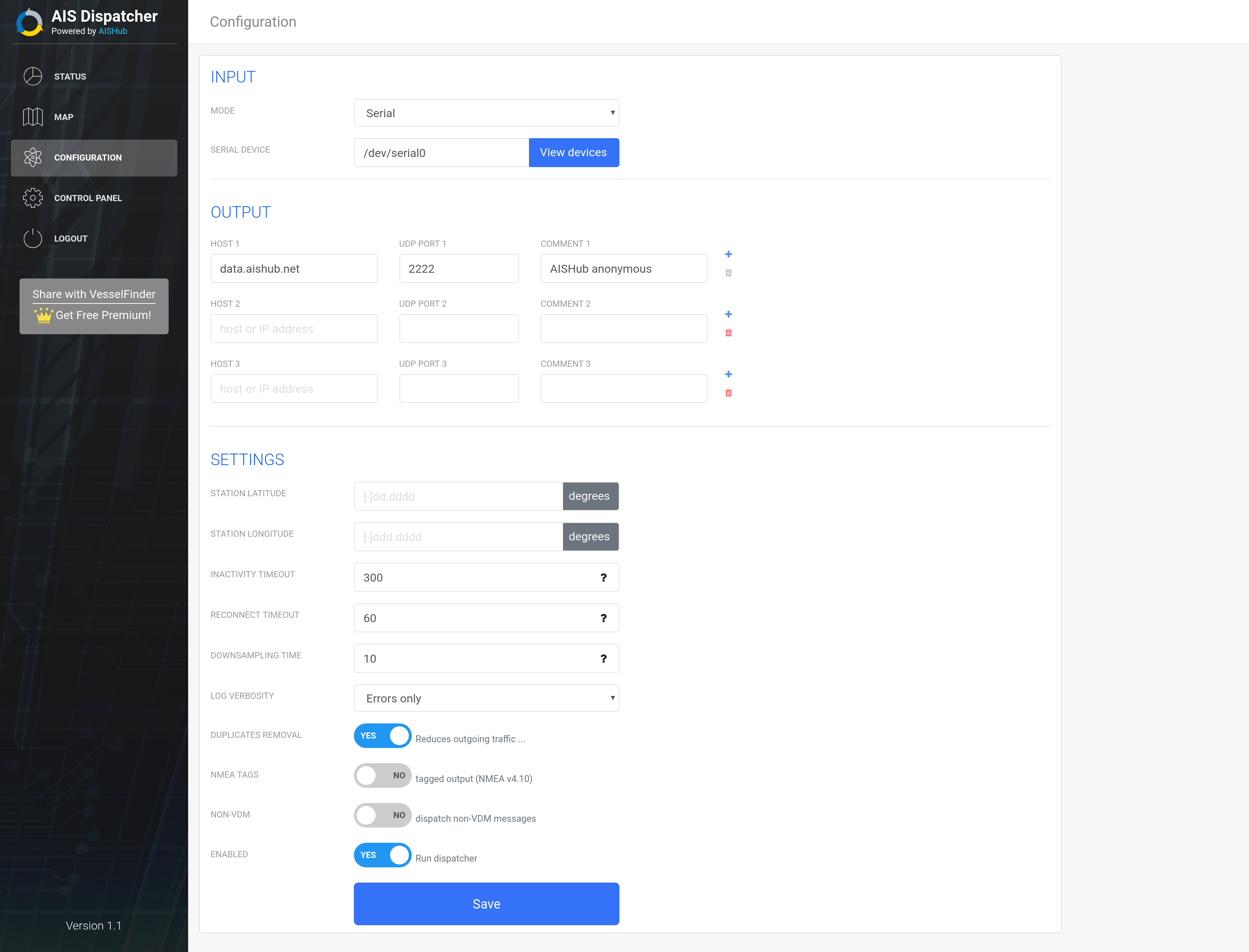
There are 3 sections in the configuration panel:
- Input – configuration of connection to your AIS receiver/data source.
- Output – configuration of the destinations where AIS data will be forwarded to
- Settings – additional settings and enable/disable of AIS Dispatcher
Input
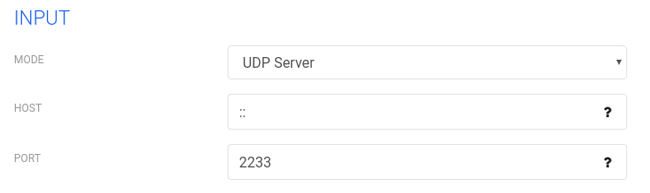
AIS Dispatcher supports 3 input options:
- Serial input (AIS receivers connected via serial/USB interface)38400,8,N,1 settings are applied to the serial interface by default
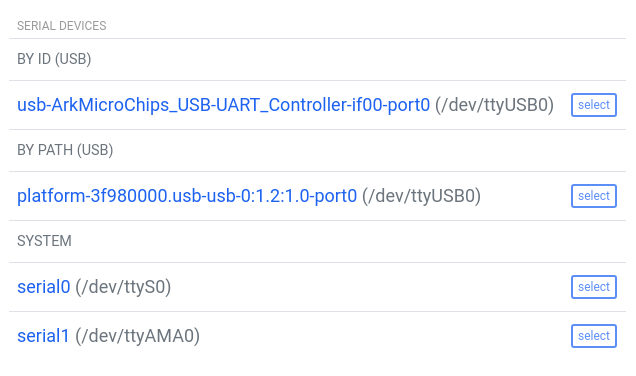
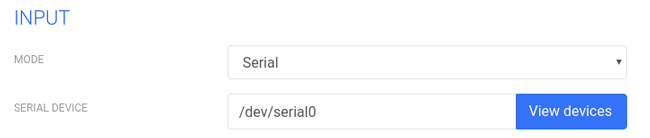 “View devices” button displays all available serial devices on your computer.
You can easily select the device where your AIS receiver is connected by clicking on corresponding
“Select” button (preferably use selection “By ID” if you don’t have two devices with same ID)
 WARNING Many Raspberry Pi users, who are using serial connection (or AIS shield), have troubles because by default Linux console is enabled on this serial port. If you are using Raspberry OS you should disable the Linux console, follow the instructions on this link
-
TCP Client (AIS Dispatcher creates a TCP connection to your AIS receiver/data source)
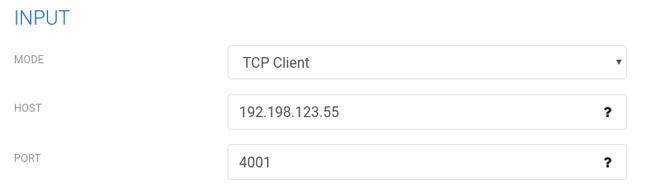
-
TCP Server (your AIS data source creates a TCP connection to AIS Dispatcher)
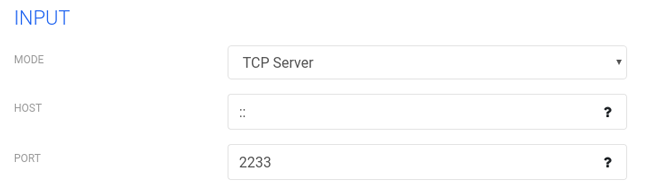
-
UDP Server (AIS Dispatcher listens for incoming UDP packets)
Output
Output section contains all destinations where your data will be forwarded to.
Current version supports UDP data streaming to 1 or more destination IP addresses / UDP ports.
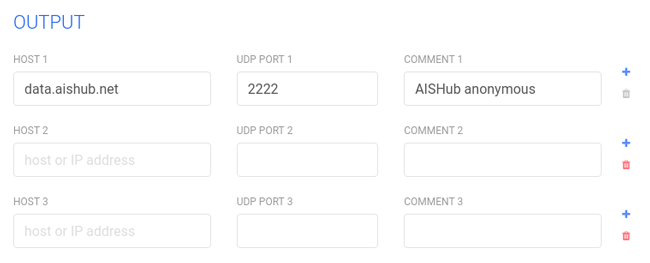 By default, AIS Dispatcher streams data to AISHub anonymous port.
Settings
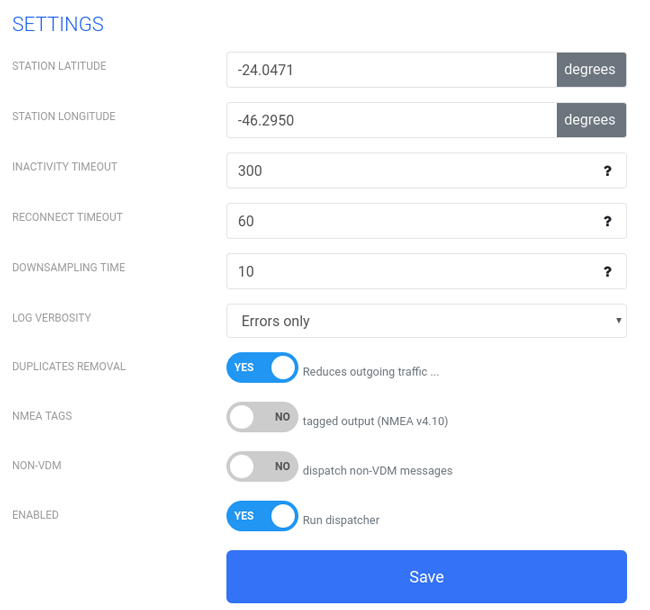
- Inactivity timeout – Restarts TCP connection if no AIS messages have been received for more than specified time interval (in seconds)
- Reconnect timeout – Time interval (in seconds) between two sequential connection attempts
- Downsampling time – Reduces outgoing traffic by transmitting only 1 position report per ship in the specified time frame (in seconds from 0 to 60)
- Log verbosity – Verbosity of log messages (errors only, errors+connection status, errors + connection status + debug info)
- Duplicates removal – Reduces outgoing traffic by removal of duplicated AIS messages
- Tag – Adds NMEA v4.10 tags in the beginning of output NMEA sentences
- Non-VDM – Dispatches all non-VDM (non-AIS) messages (for example GPS messages)
- Enabled – Start / Stop AIS Dispatcher
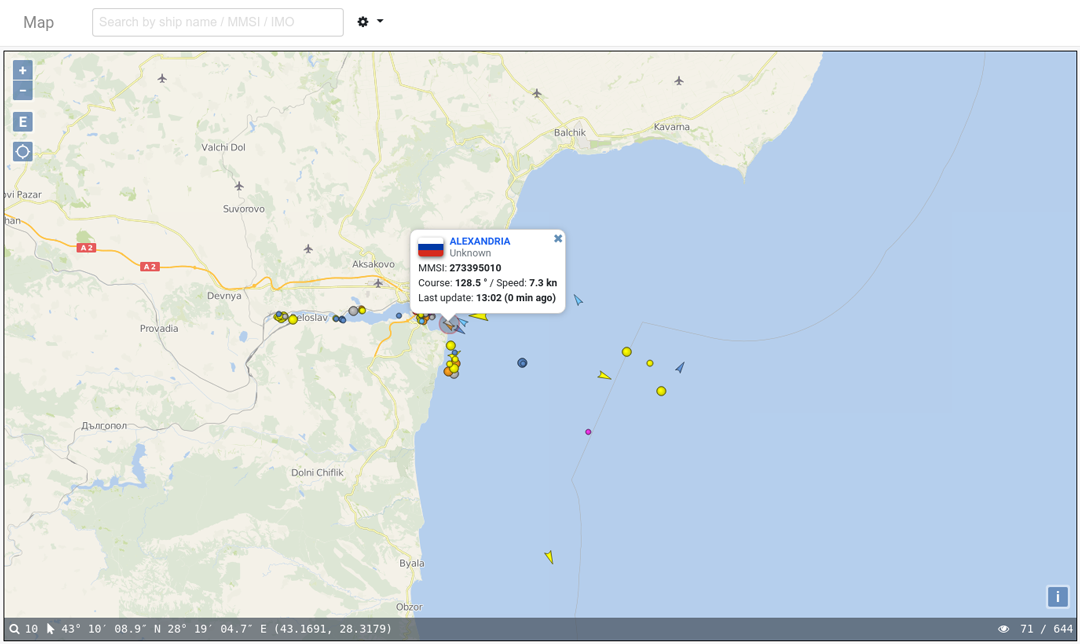
Map
If the input configuration is OK it is time to click on Map menu and start having fun with your AIS coverage.